
Ephinea Font Setup
Ephinea Phantasy Star Online: Blue Burst uses Tahoma as the default in-game font, but also includes two additional fonts: Dotum and Gulim. These can be used to make the in-game text more closely match the original GameCube release. However, they need to be installed manually on your OS before selecting them in the launcher. This guide shows you where to find the fonts and how to install them on both Windows and Steam Deck.
Contents
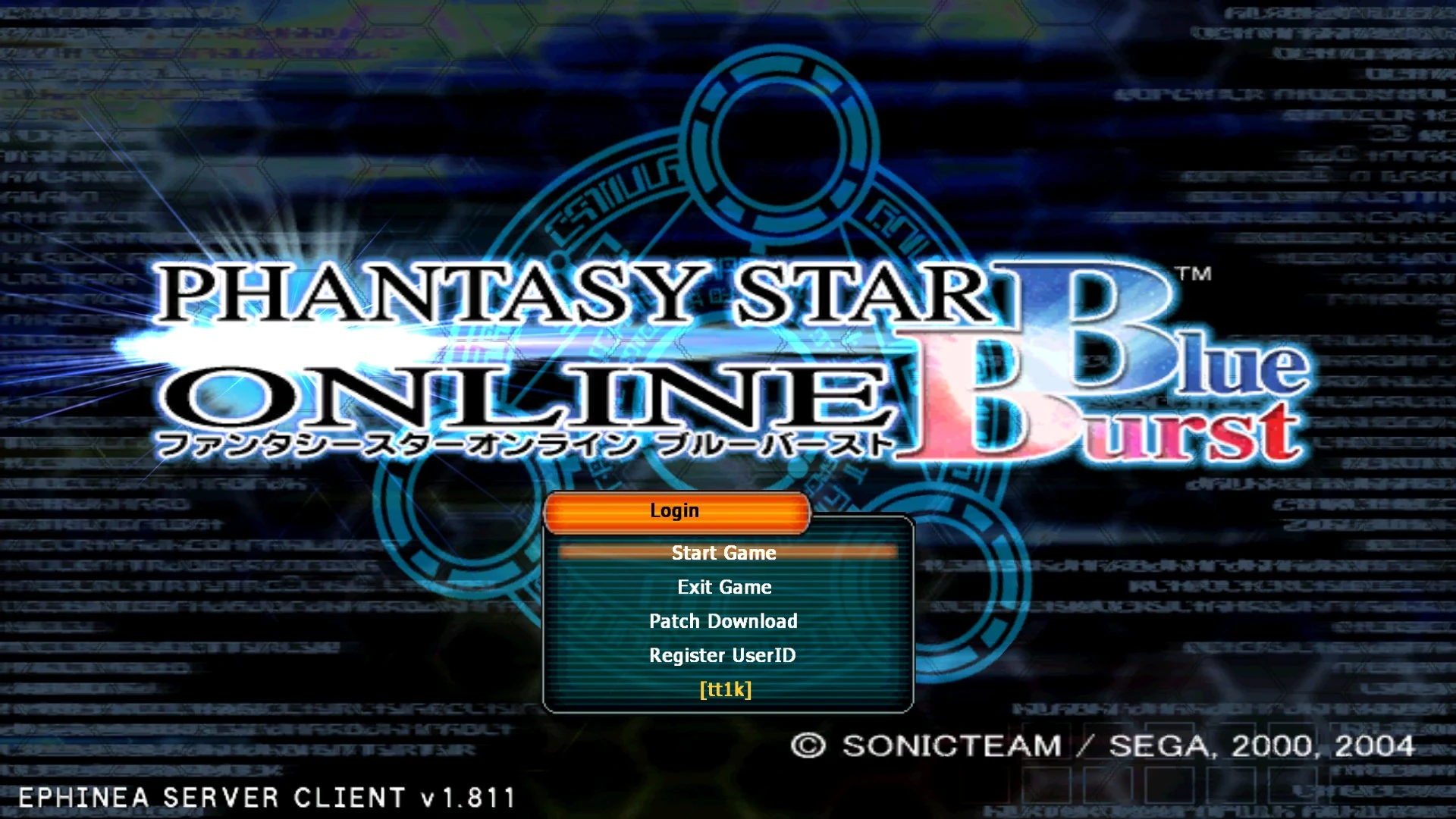
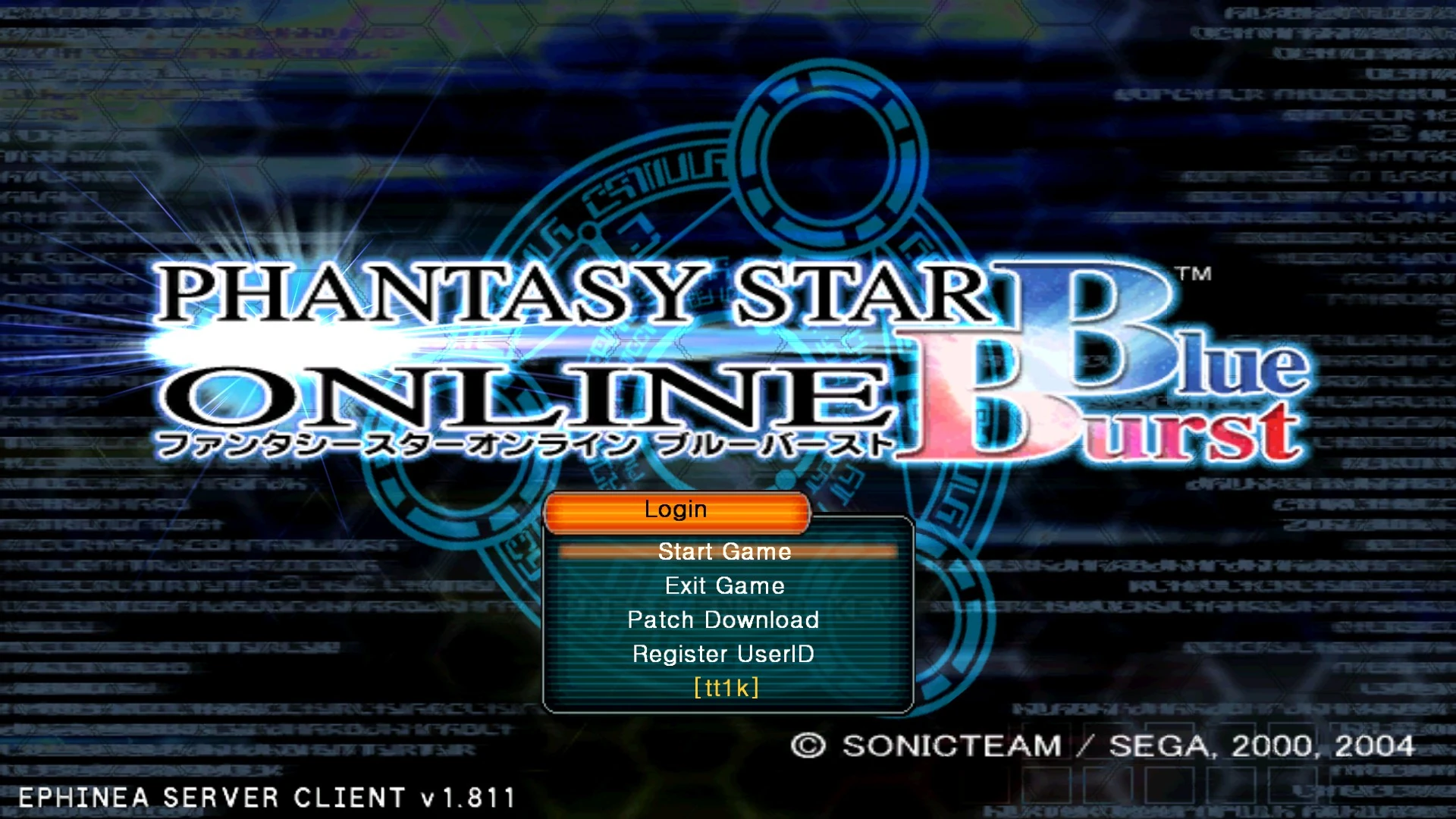
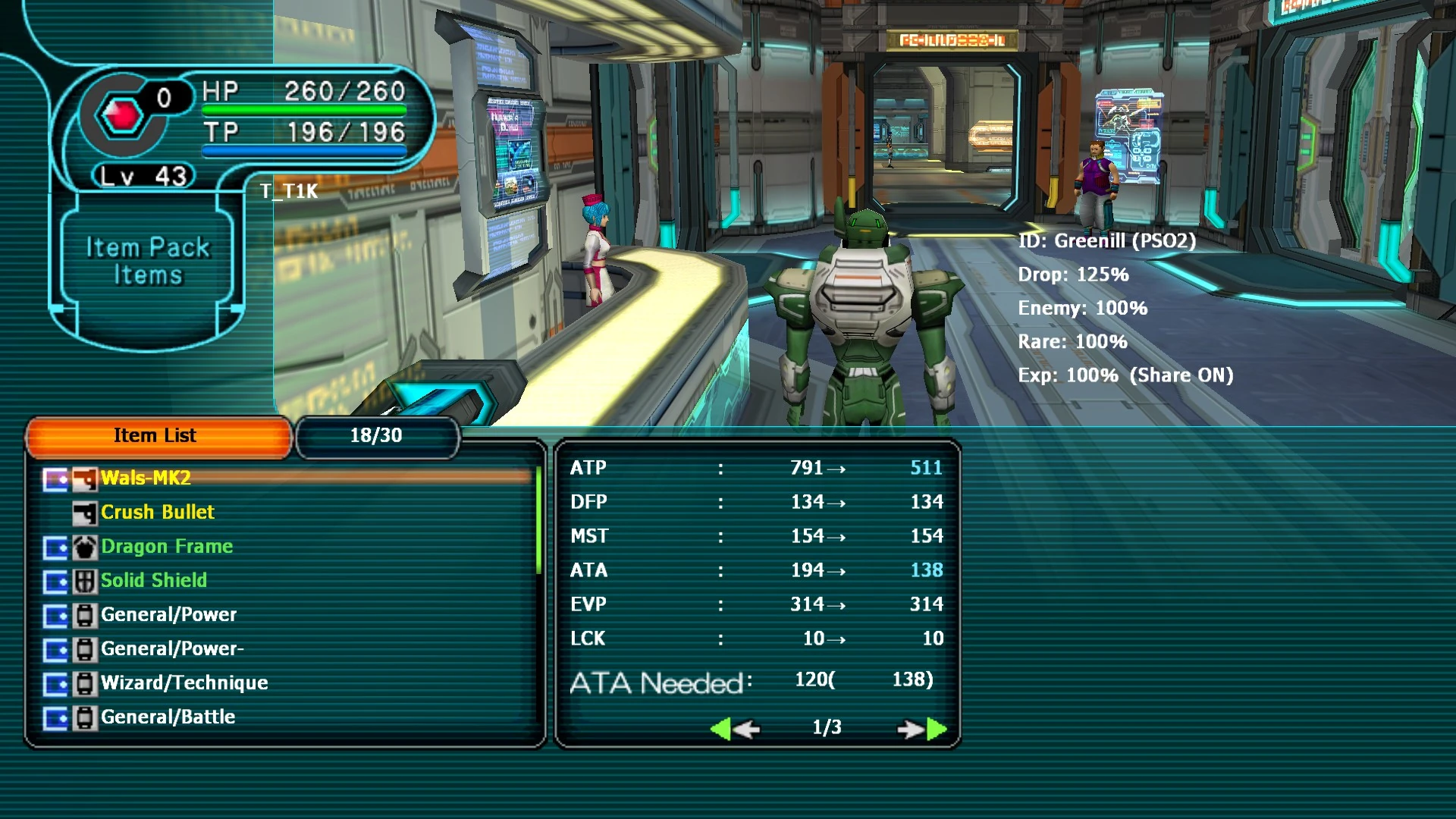
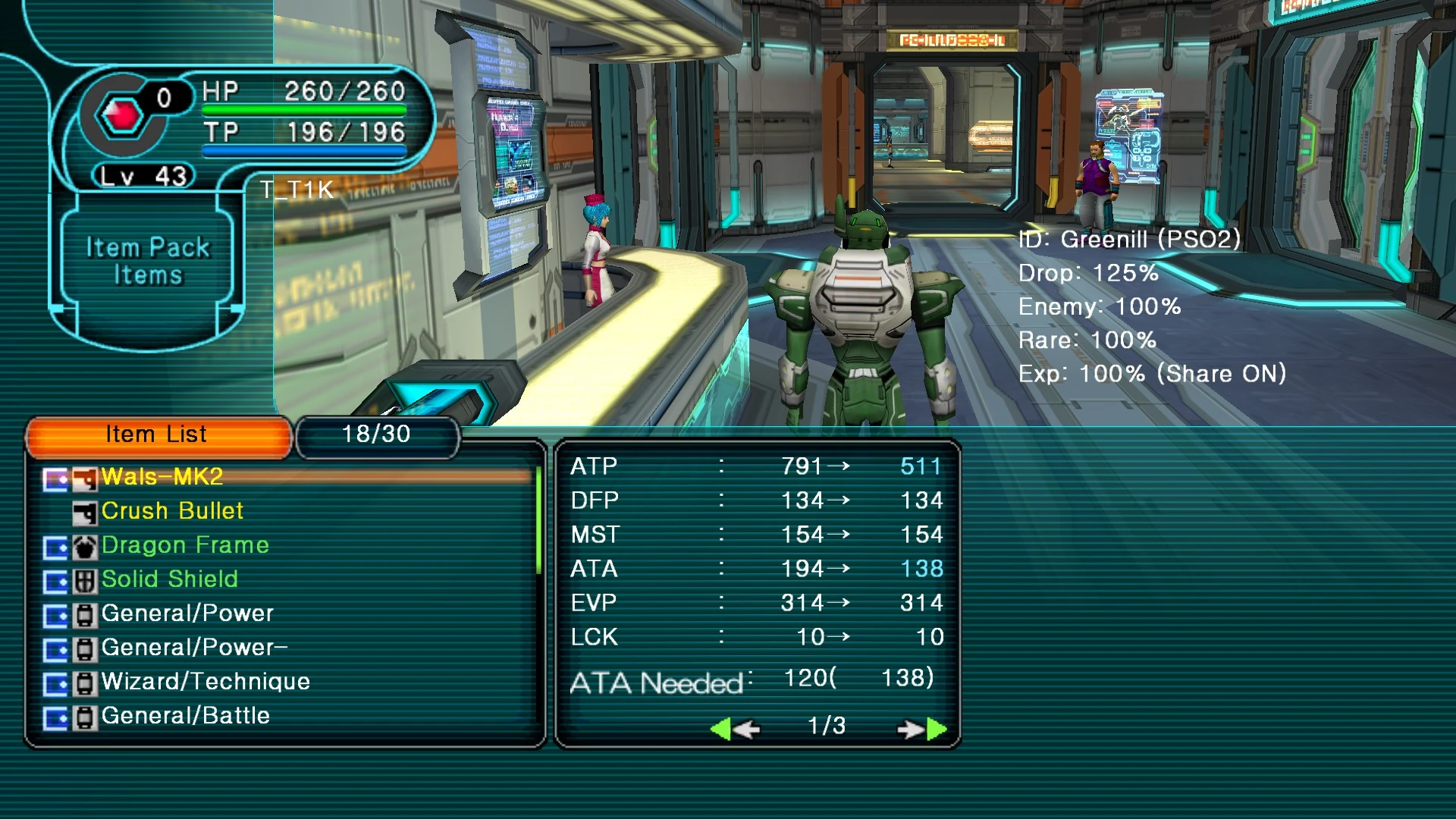
Before and After
Before is Tahoma, after is Dotum.
Windows
- Navigate to your PSO installation’s
fontfolder (e.g.C:\Users\Username\EphineaPSO\font). - Right-click
GULIM.TTC→ Install. - Select the font in the Ephinea Launcher (Options → More → Font).
- Click Save, then start the game.
Steam Deck
- Navigate to your PSO installation’s
fontfolder (e.g./home/deck/.local/share/Steam/steamapps/compatdata/3535824940/pfx/drive_c/EphineaPSO/font). - Right-click
GULIM.TTC→ Copy. - Navigate to the prefix’s
Fontsfolder (e.g./home/deck/.local/share/Steam/steamapps/compatdata/3535824940/pfx/drive_c/Windows/Fonts). - Right-click → Paste.
- Select the font in the Ephinea Launcher (Options → More → Font).
- Click Save, then start the game.
FAQs
You said there are two fonts, but I only see one file?
Correct - both fonts are included in the same file. In fact, there are four fonts: two standard and two monospace variants (suffixed “Che”).
Which font is best?
It’s up to you - I prefer Dotum.