
Ephinea Steam Deck Setup
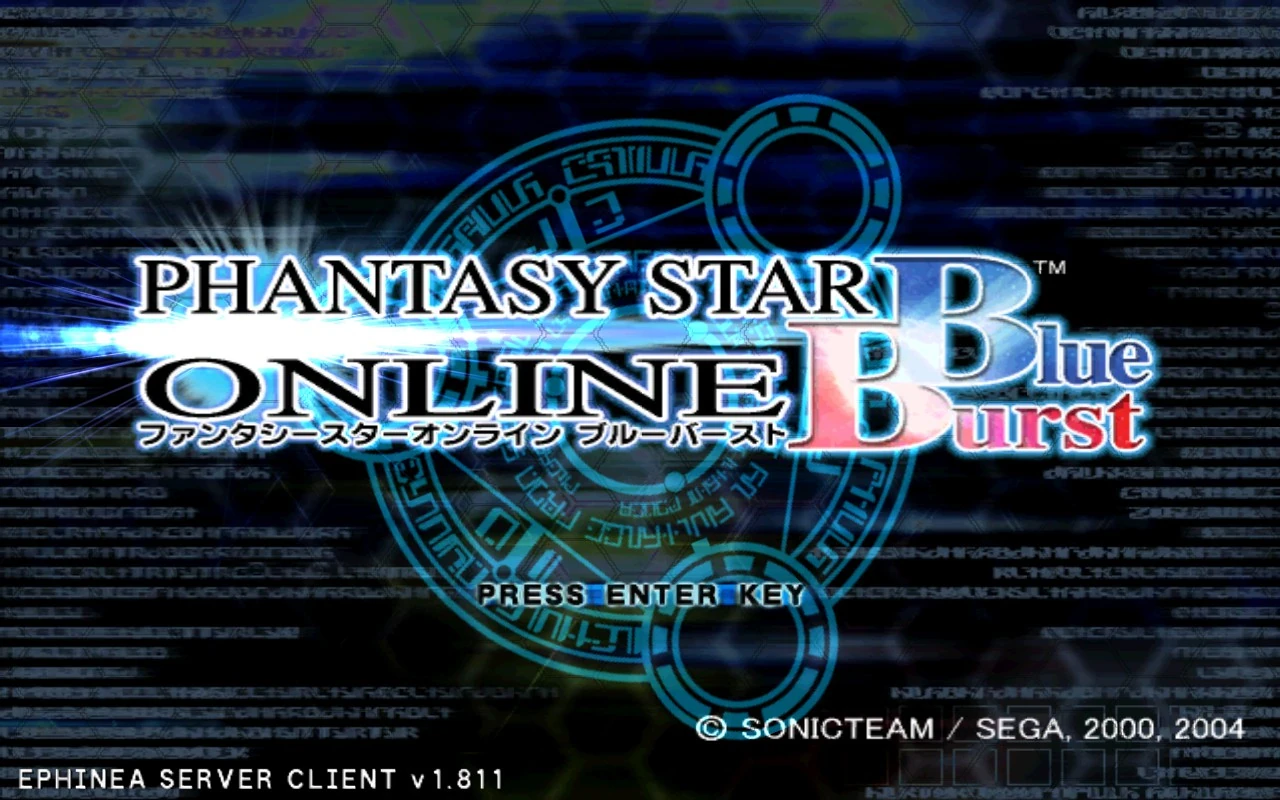
Phantasy Star Online: Blue Burst on the Ephinea private server runs on Steam Deck, but some additional configuration is needed compared with Windows. This step-by-step guide shows you how to run Ephinea on a Steam Deck, enabling all action shortcuts and improving camera control.
Contents
- Step 1 - Download PSO
- Step 2 - Install PSO
- Step 3 - Add PSO to Steam
- Step 4 - Install Protontricks
- Step 5 - Finished
- FAQs
- Extras
Step 1 - Download PSO
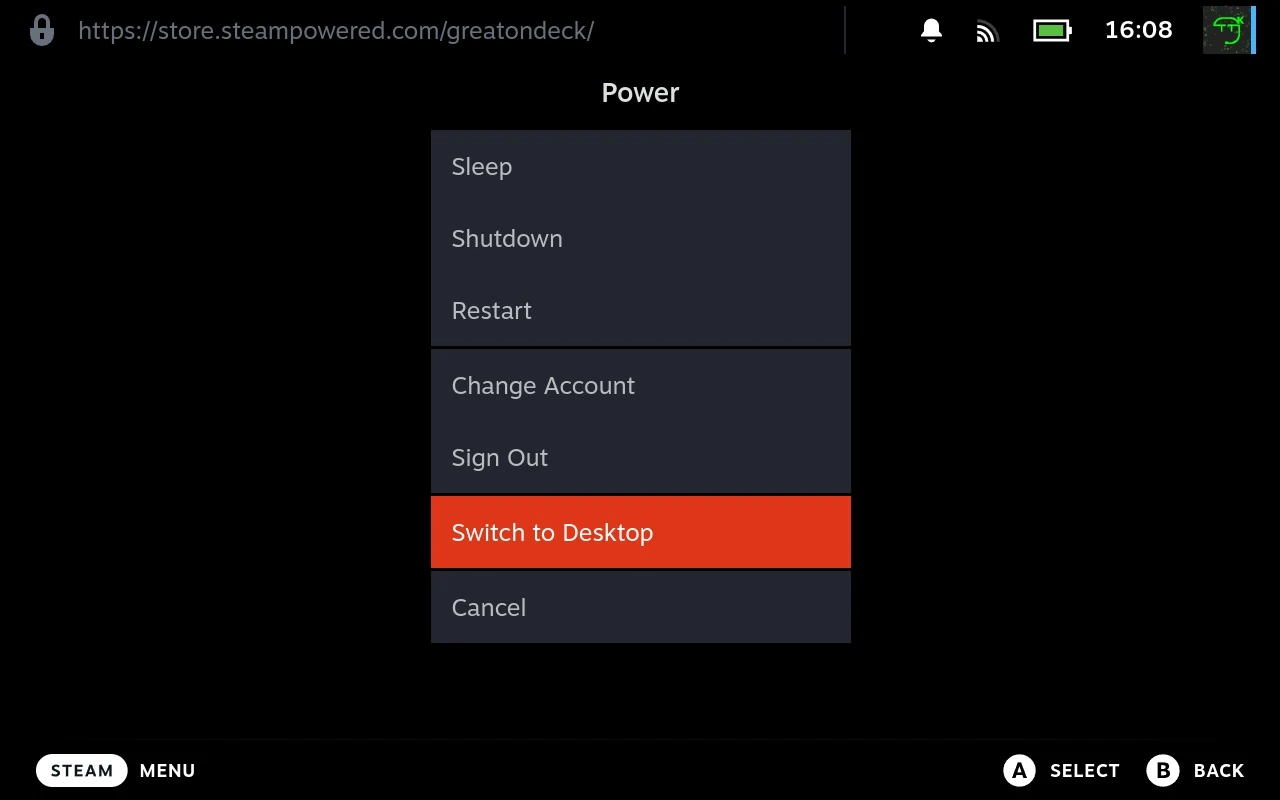
First, switch to Desktop Mode and download PSO.
- Click Switch to Desktop (
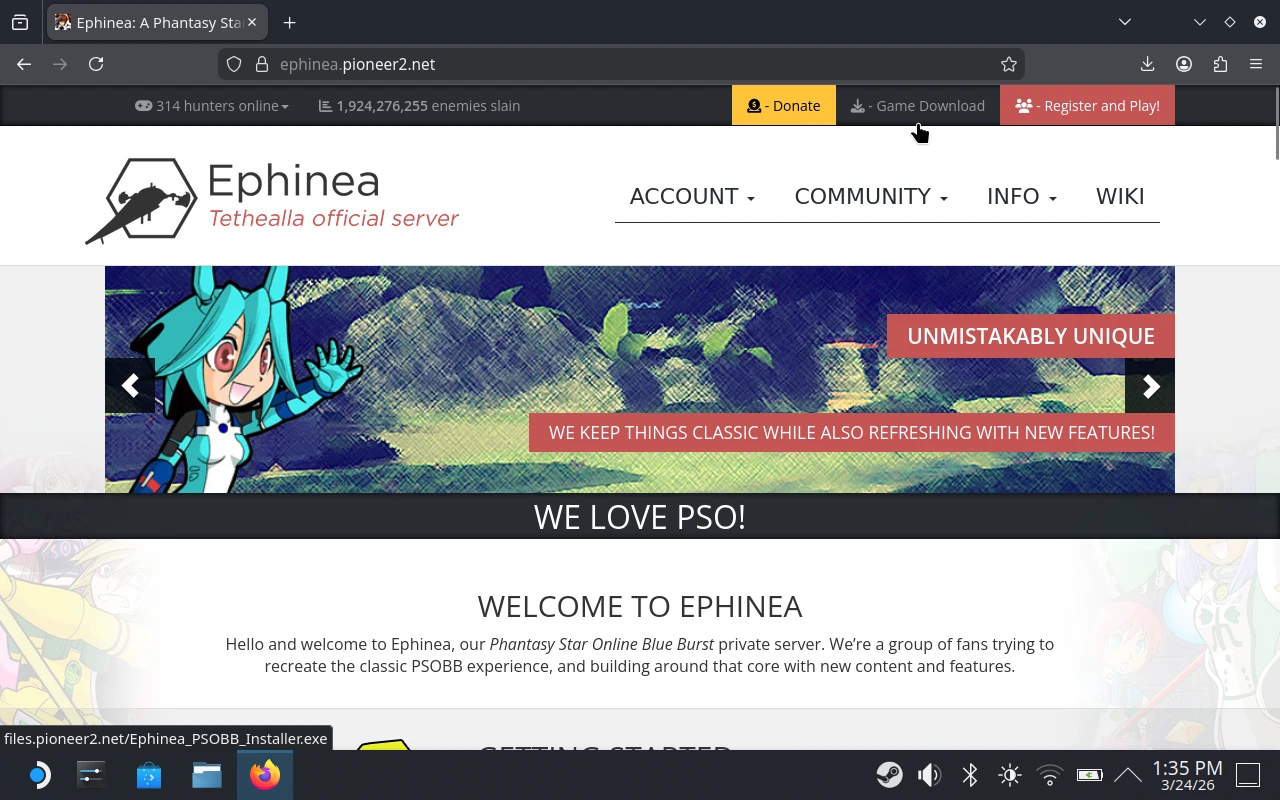
Steam → Power → Switch to Desktop). - Open Firefox from the taskbar. If prompted, install it via Discover Software Center.
- Download Ephinea to the Downloads folder.
Tip: In Desktop Mode, press
Steam + Ato open the on-screen keyboard when needed.
Step 2 - Install PSO
To install PSO, add the installer to Steam and run it using Proton.
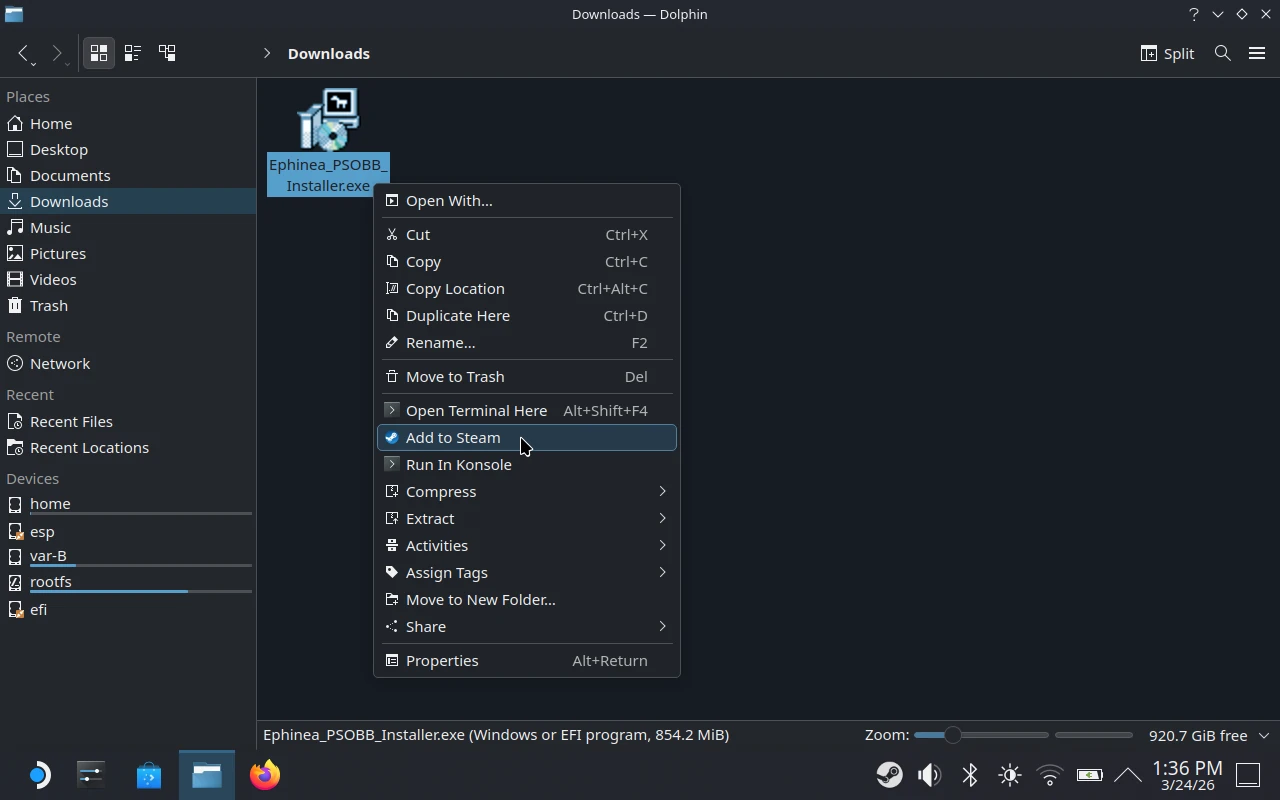
- Open Dolphin (Steam Deck’s file explorer).
- Go to Downloads.
- Right-click
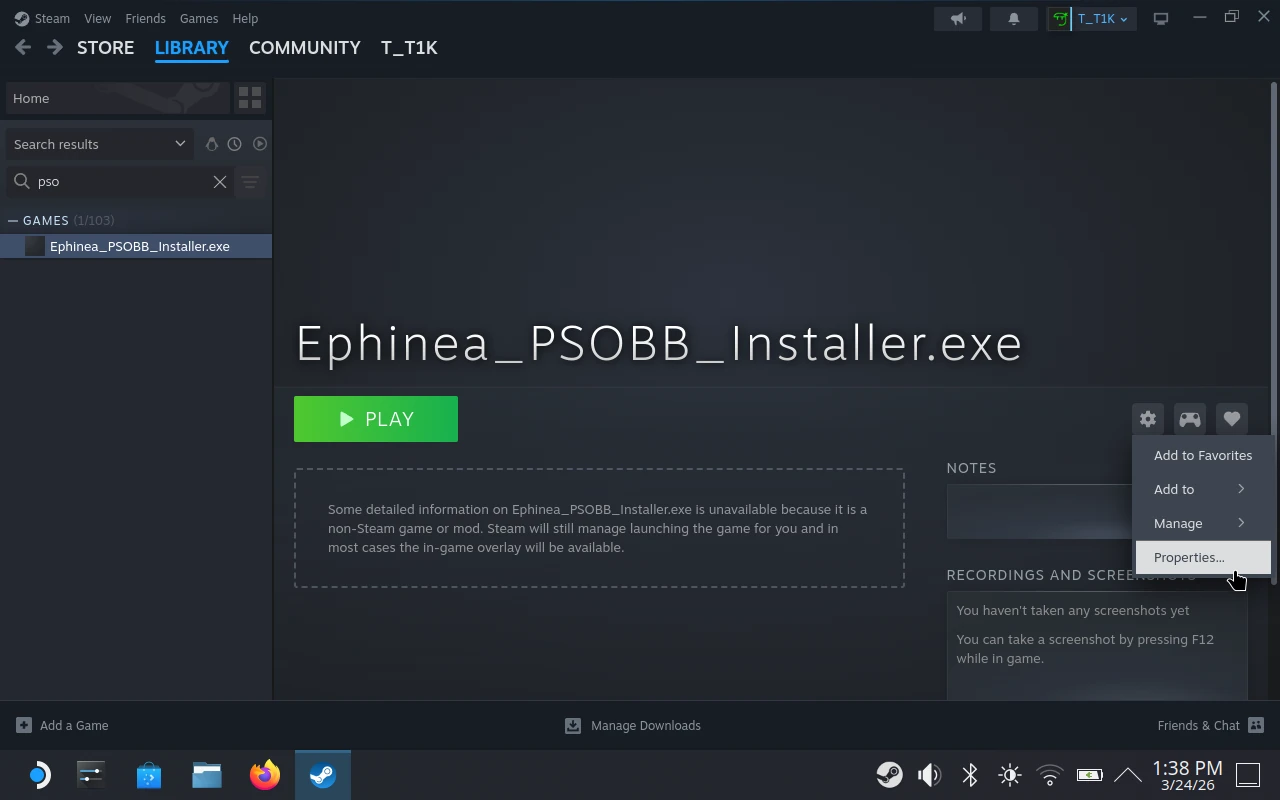
Ephinea_PSOBB_Installer.exe→ Add to Steam. - Open Steam and find the installer in your library.
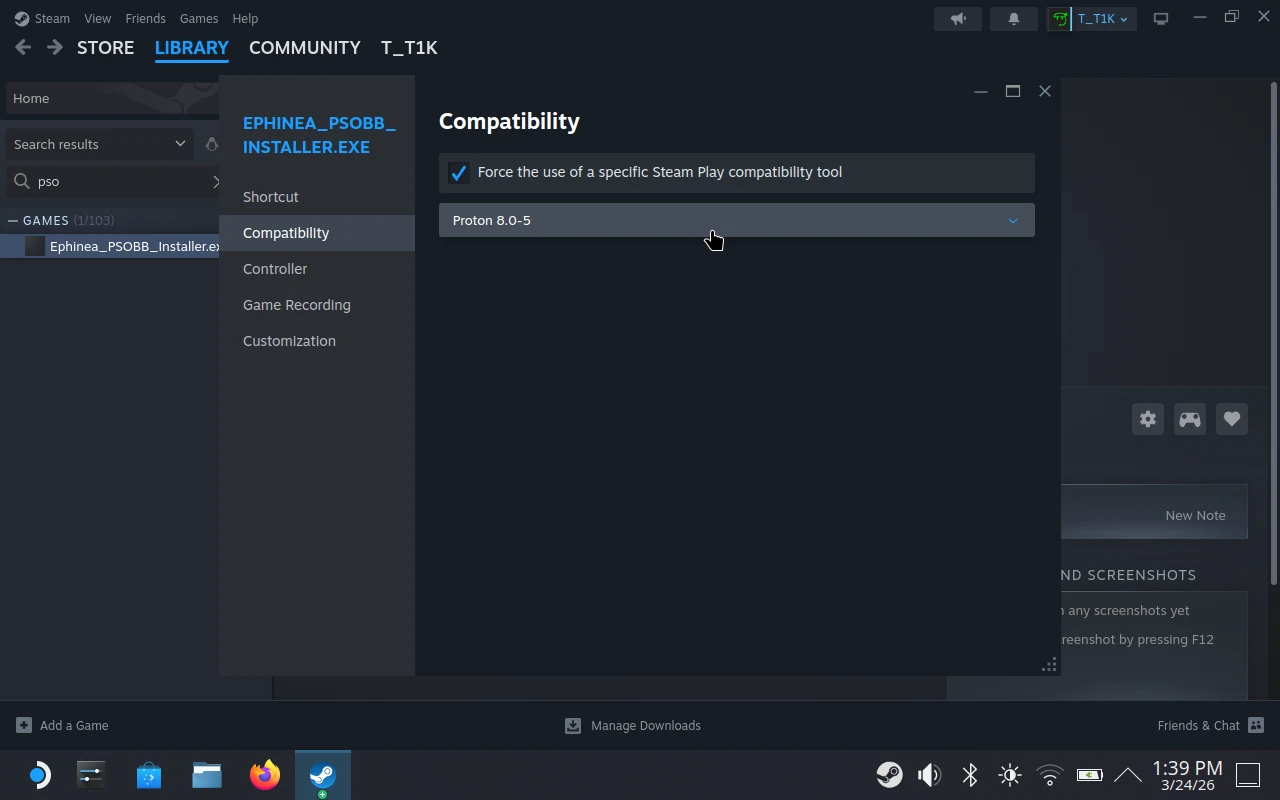
- Click Manage → Properties.
- Click Compatibility.
- Enable Force the use of a specific Steam Play compatibility tool.
- Select Proton 8.0-5.
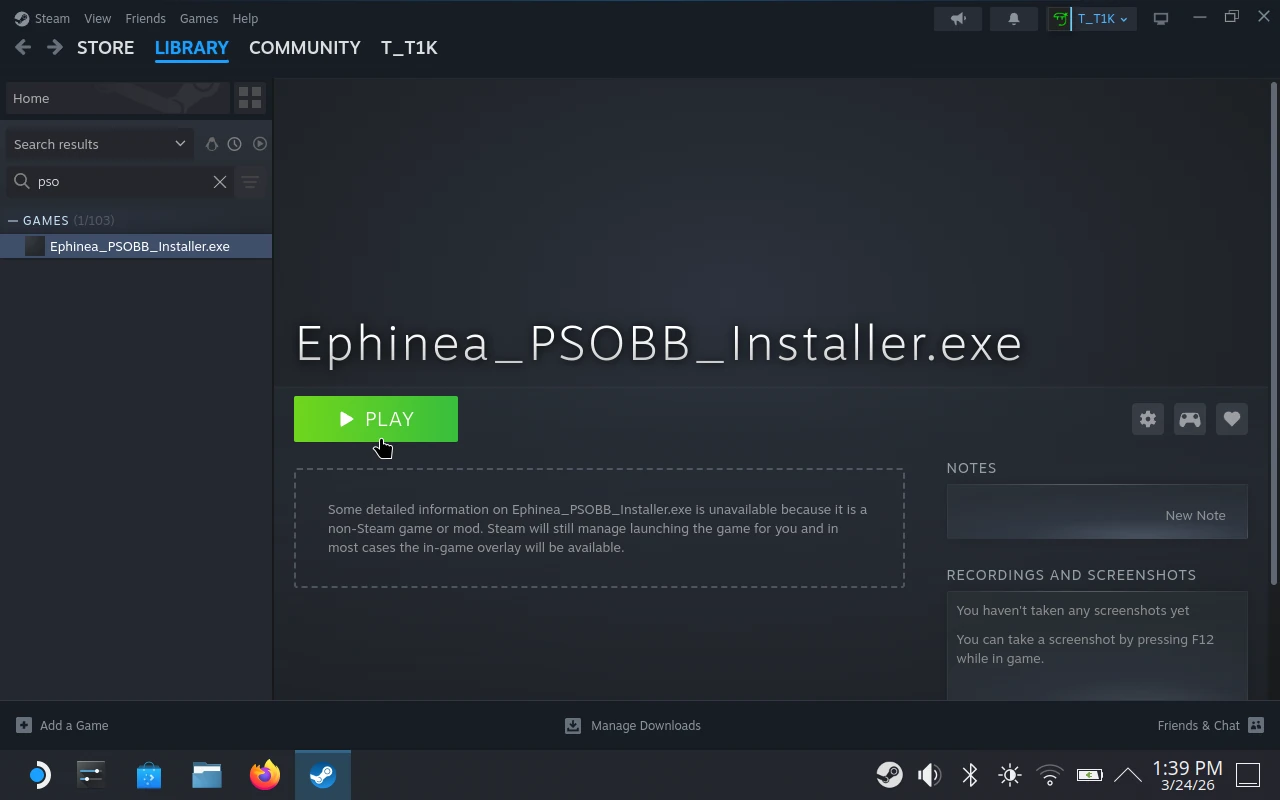
- Close the window, then click Play.
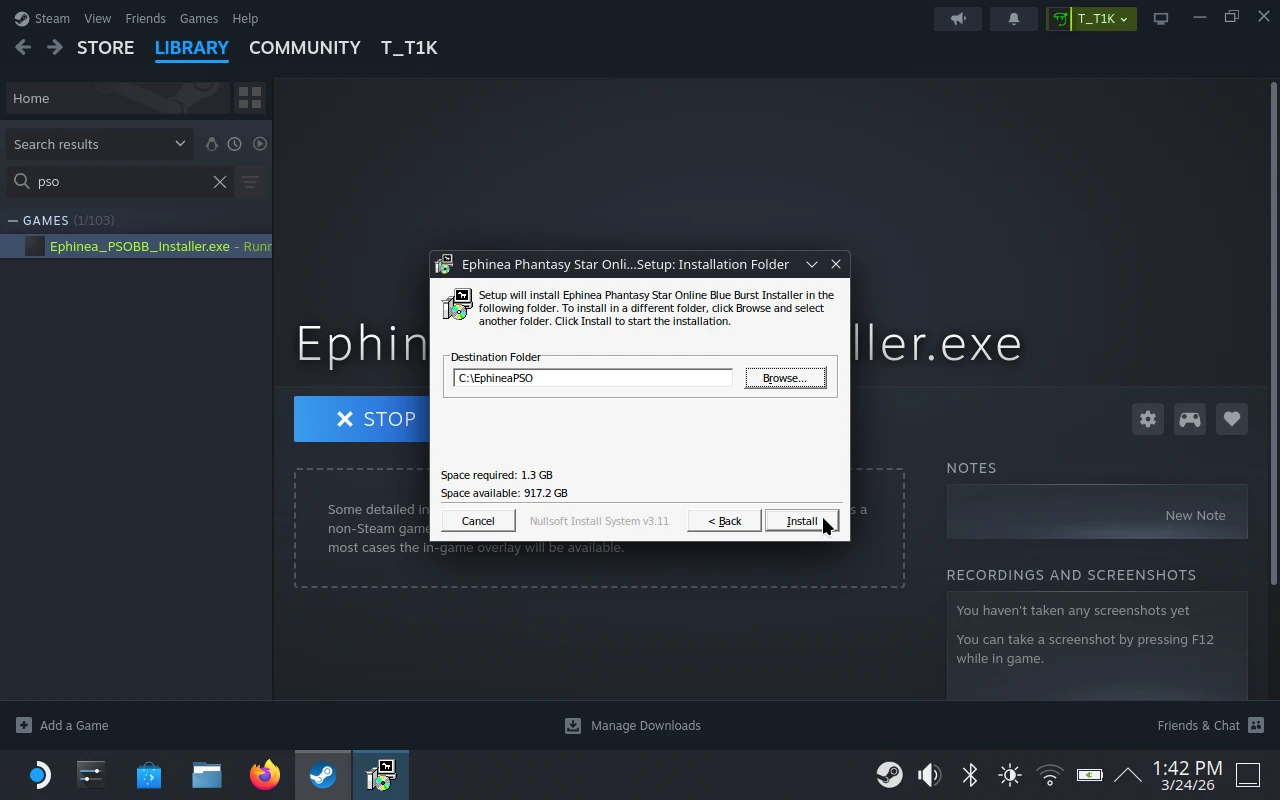
- Follow the installer prompts.
- When asked for a destination folder, use
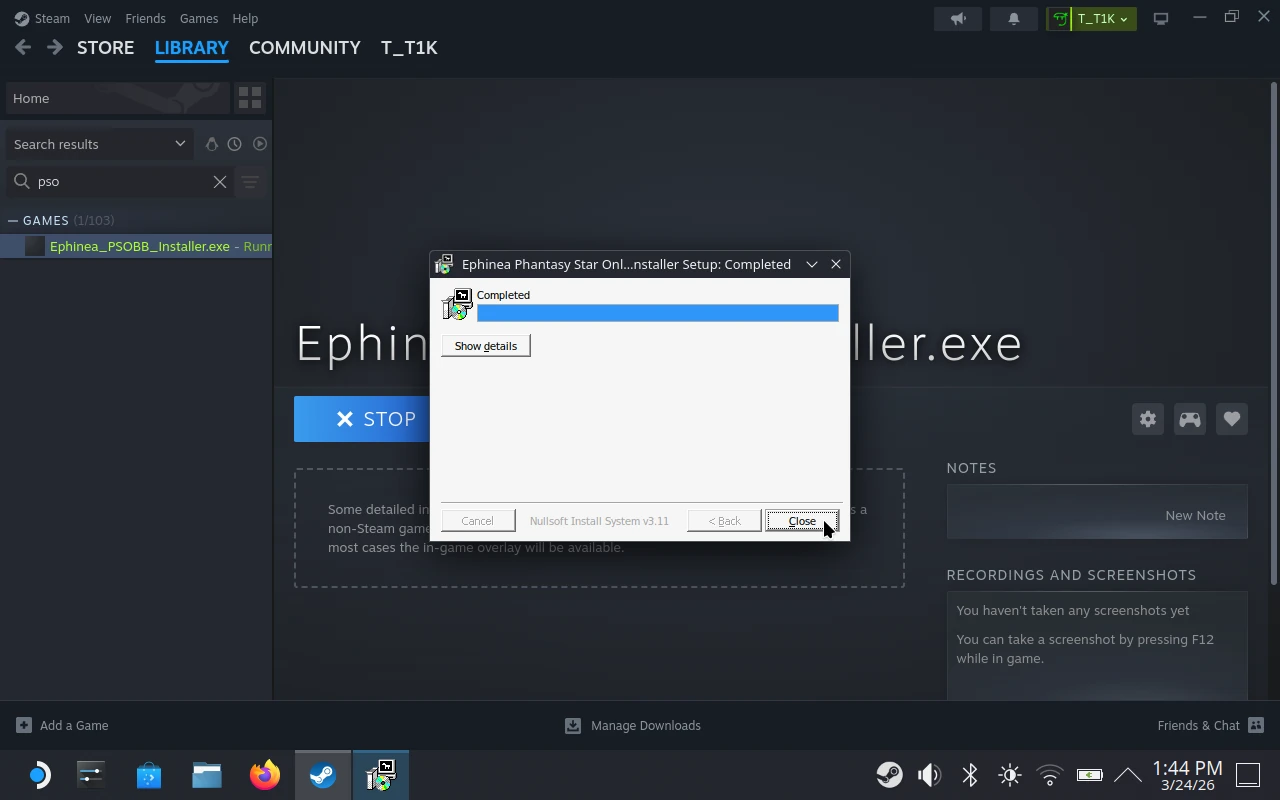
C:\EphineaPSO. - After a few minutes, the installer should complete.
Tip: Hold the Steam button while using the trackpad to control the mouse in Windows applications.
Step 3 - Add PSO to Steam
Now we’ll point Steam to the installed game instead of the installer.
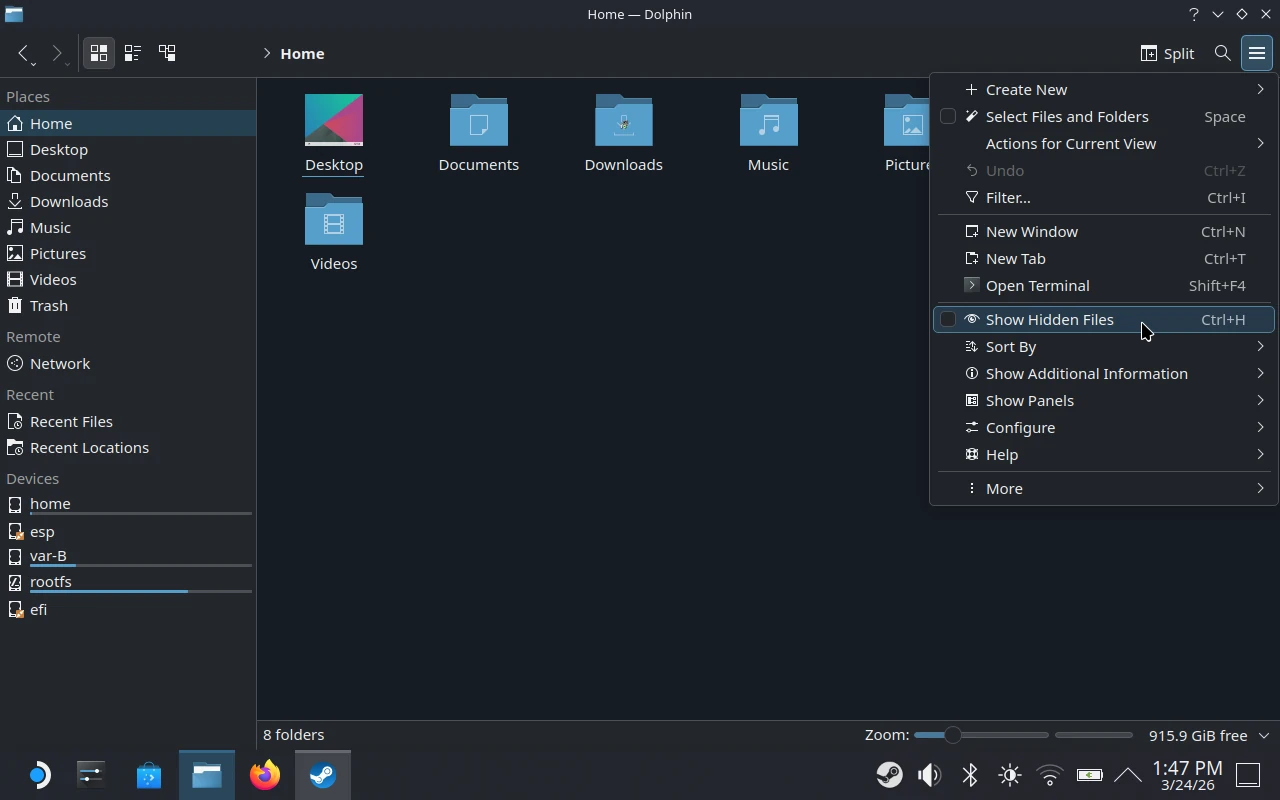
- Open Dolphin and enable Show Hidden Files.
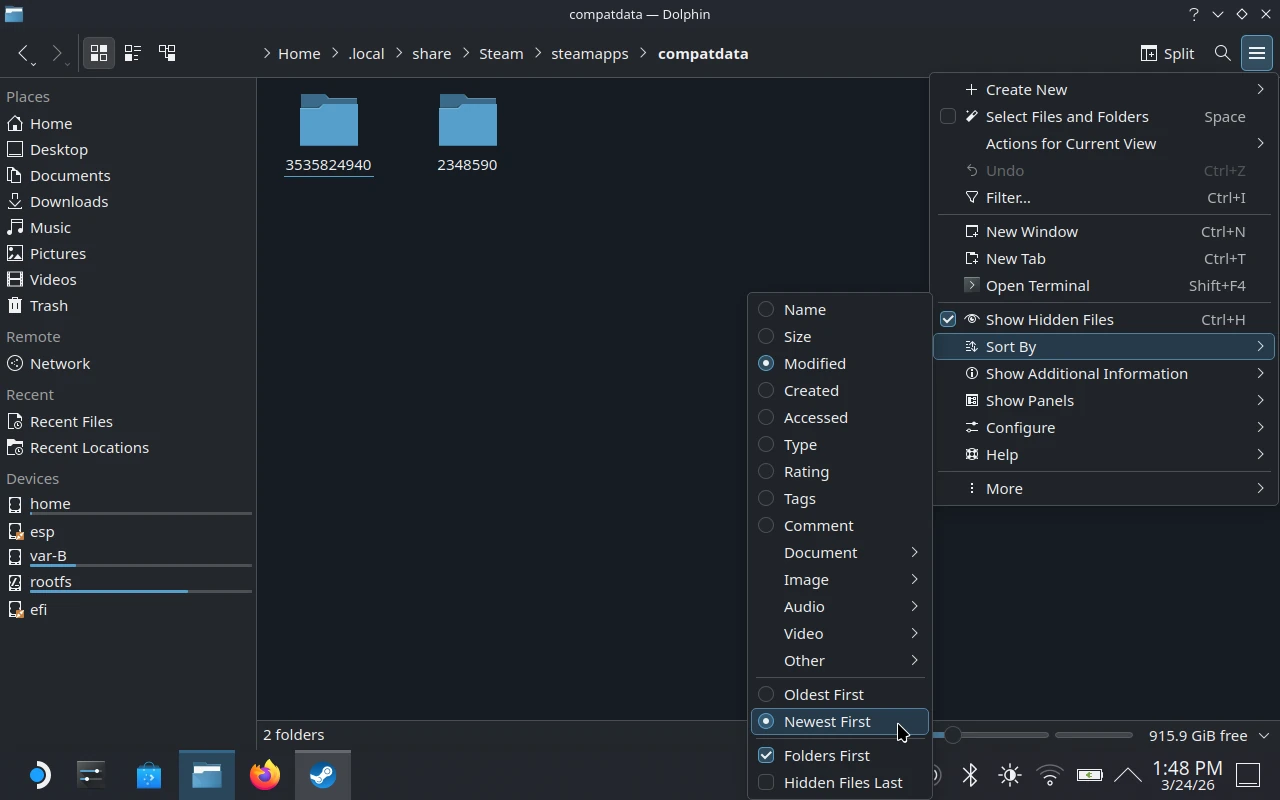
- Navigate to
/home/deck/.local/share/Steam/steamapps/compatdata. - Sort by Newest First.
- Open the newest numbered folder.
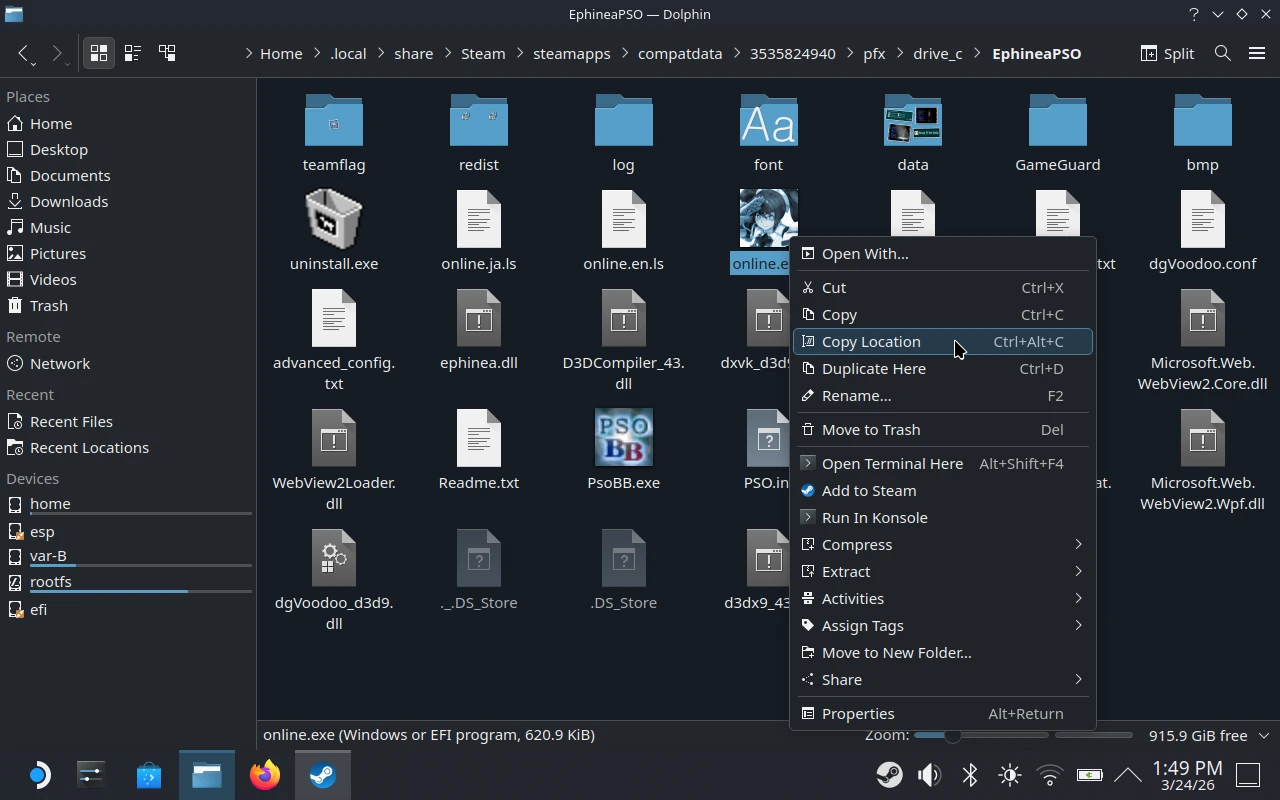
- Navigate to
/pfx/drive_c/EphineaPSO. - Right-click
online.exe→ Copy Location. - Open Steam and find the installer entry in your library.
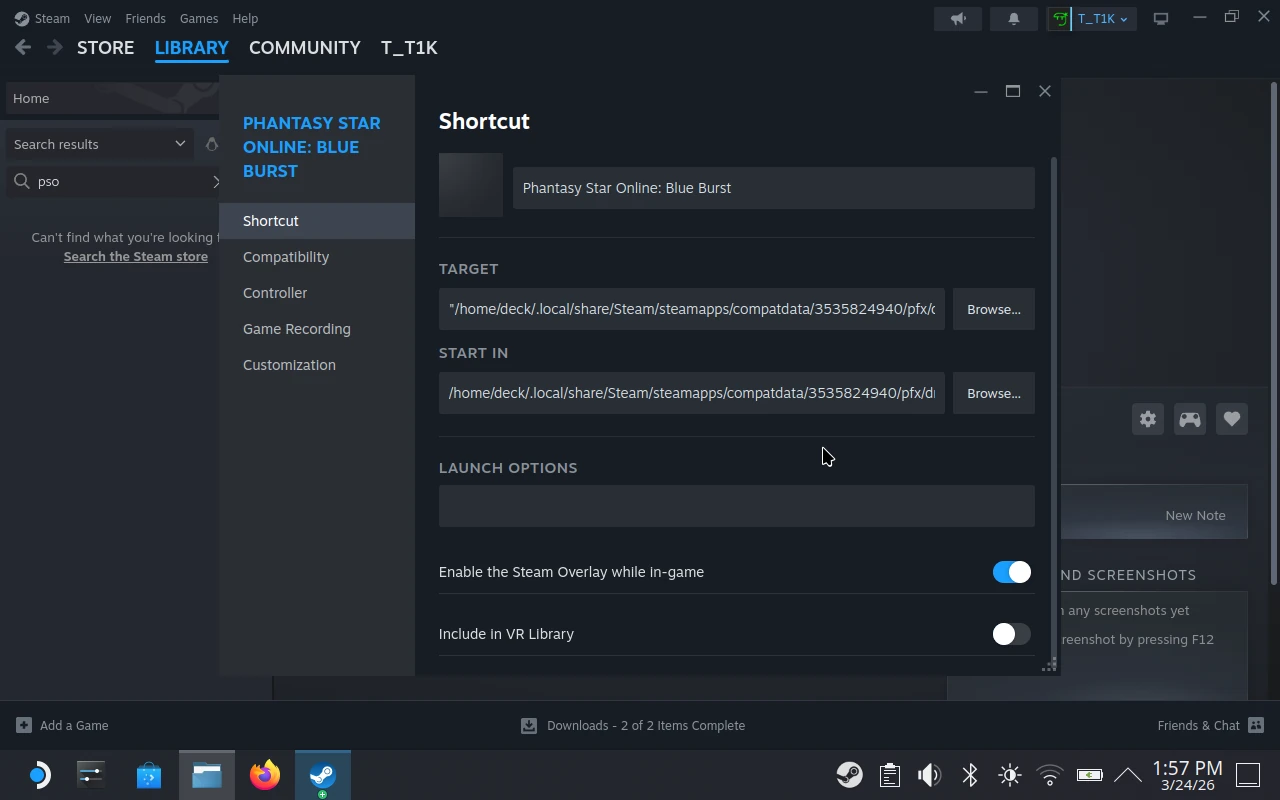
- Click Manage → Properties → Shortcut.
- Paste into TARGET, with quotes (e.g.
"/home/deck/.local/share/Steam/steamapps/compatdata/3535824940/pfx/drive_c/EphineaPSO/online.exe"). - Paste into START IN, without quotes or a filename (e.g.
/home/deck/.local/share/Steam/steamapps/compatdata/3535824940/pfx/drive_c/EphineaPSO/). - Rename the shortcut to something like Phantasy Star Online: Blue Burst.
Tip: Use Dolphin’s Copy Location to avoid typos when entering paths.
Step 4 - Install Protontricks
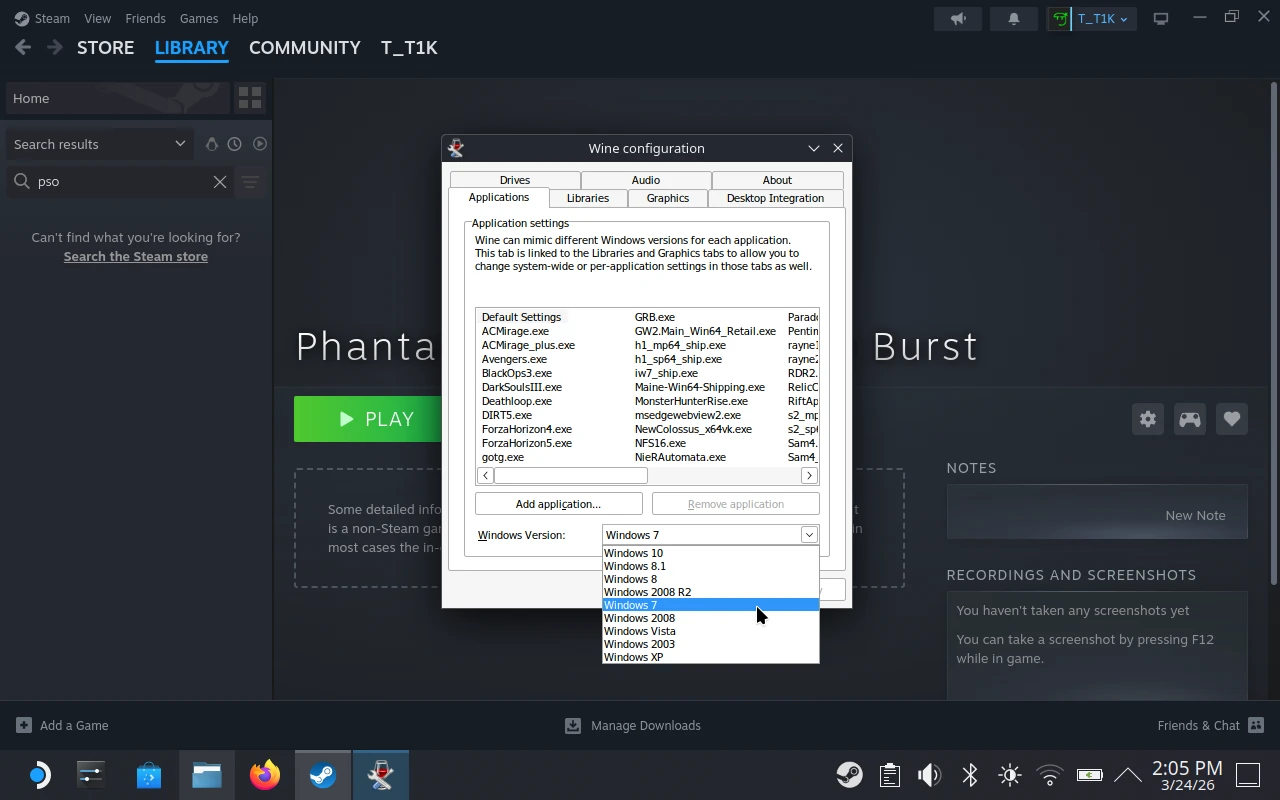
By default, Proton uses Windows 10 mode, but Ephinea works more reliably with Windows 7. Protontricks provides an easy way to change this.
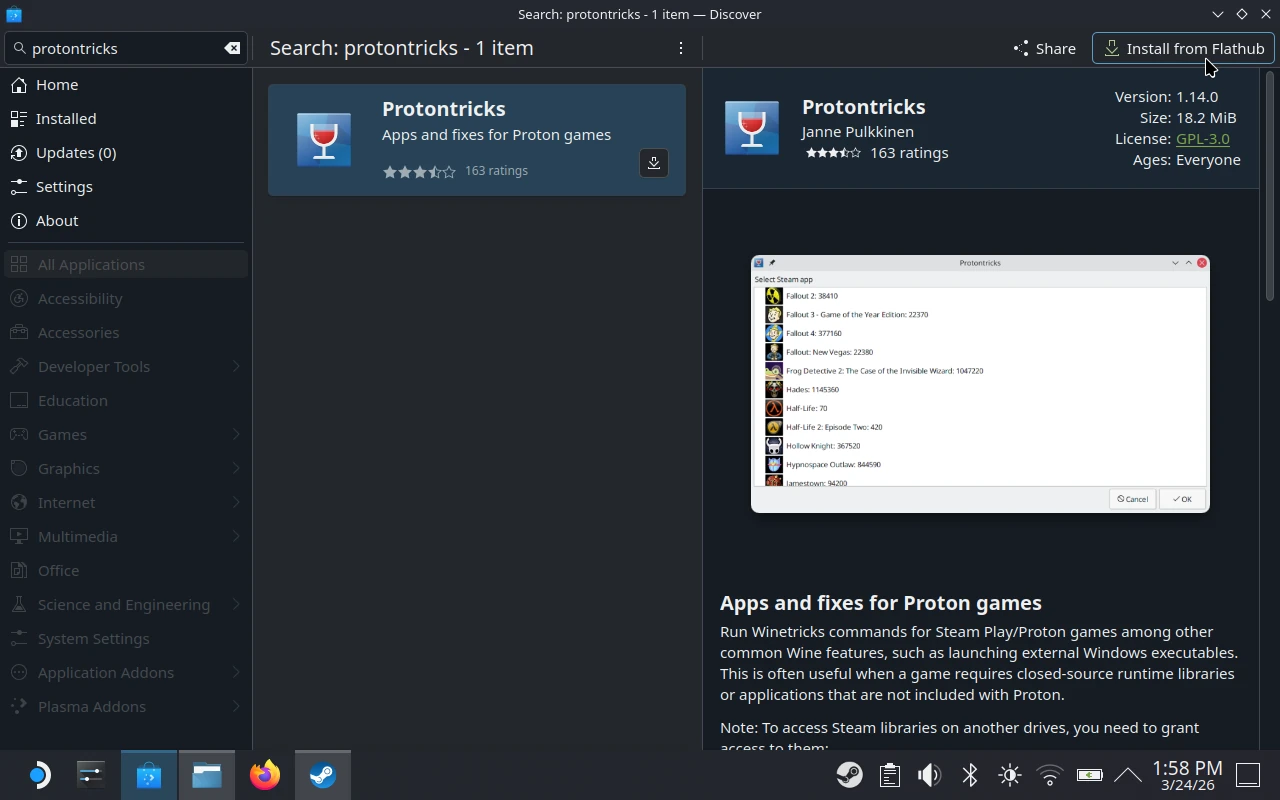
- Open Discover Software Center.
- Search for and install Protontricks.
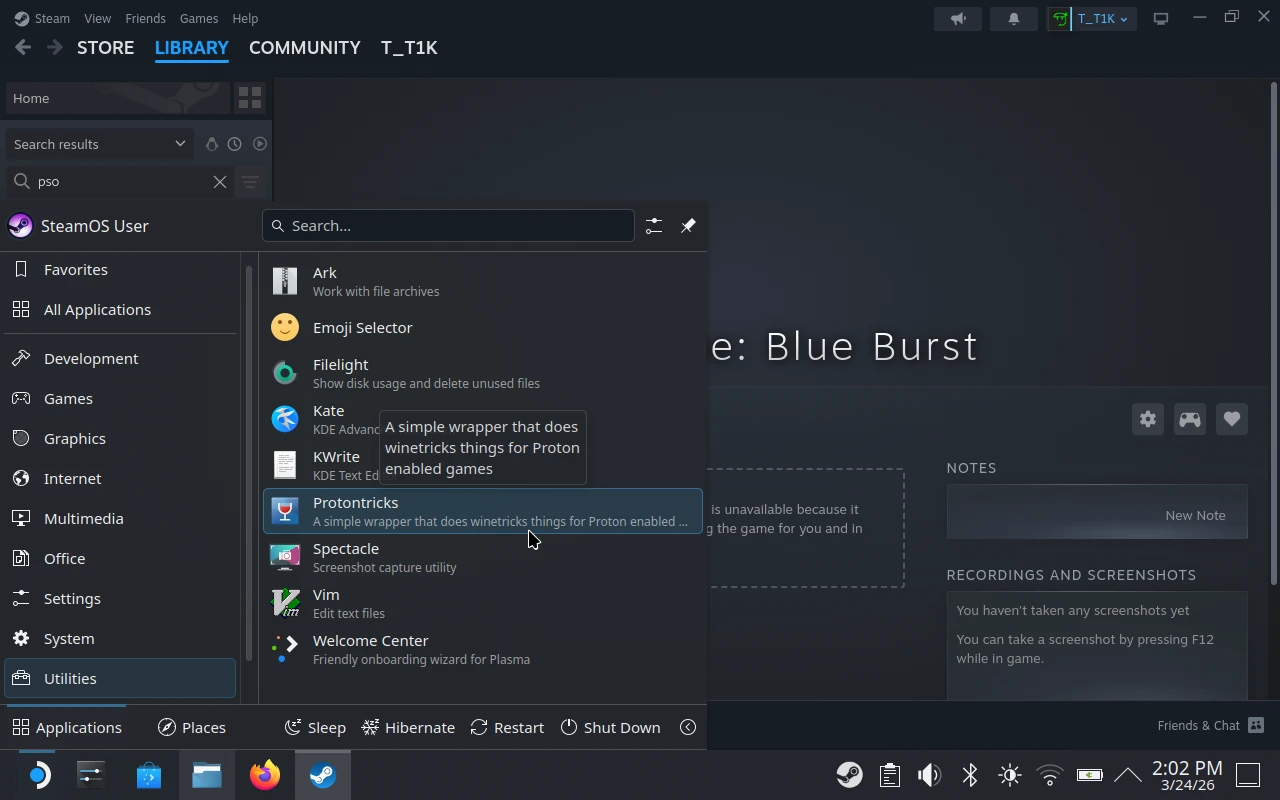
- Open Protontricks.
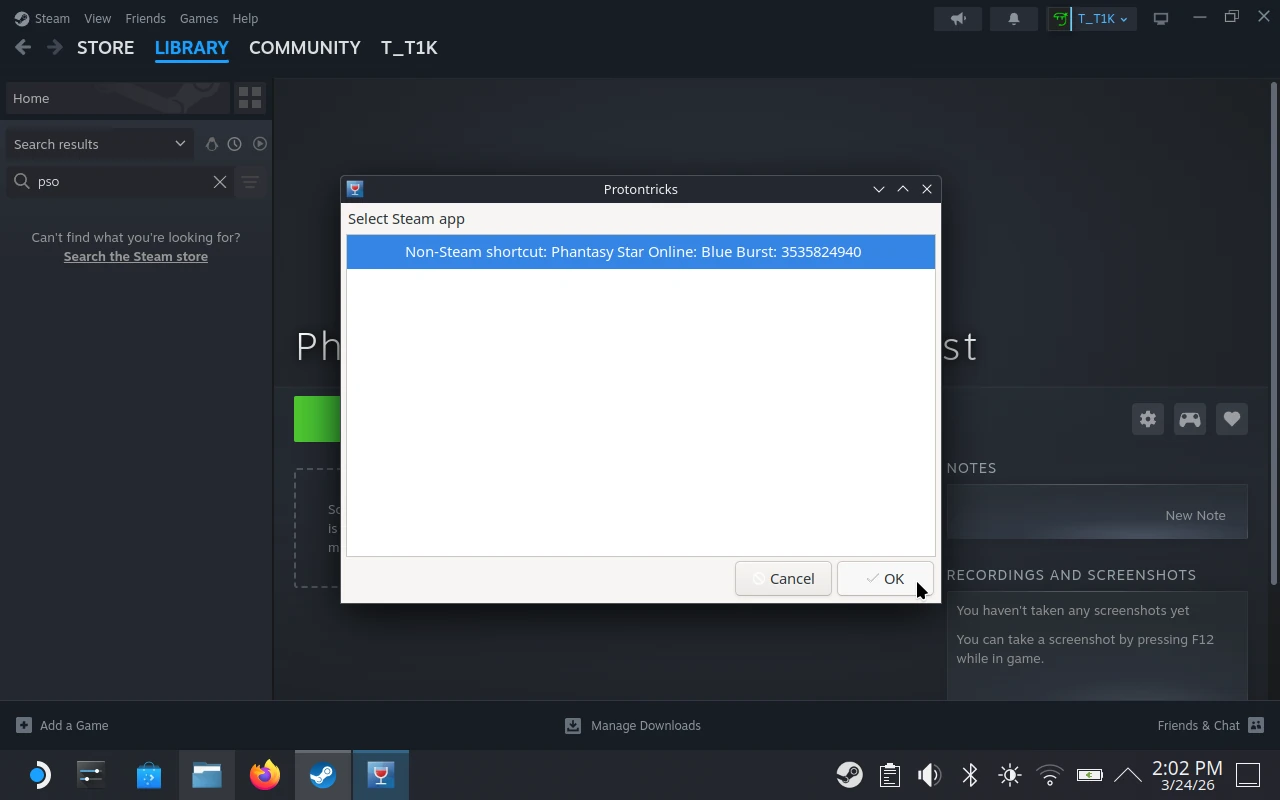
- Select Phantasy Star Online: Blue Burst.
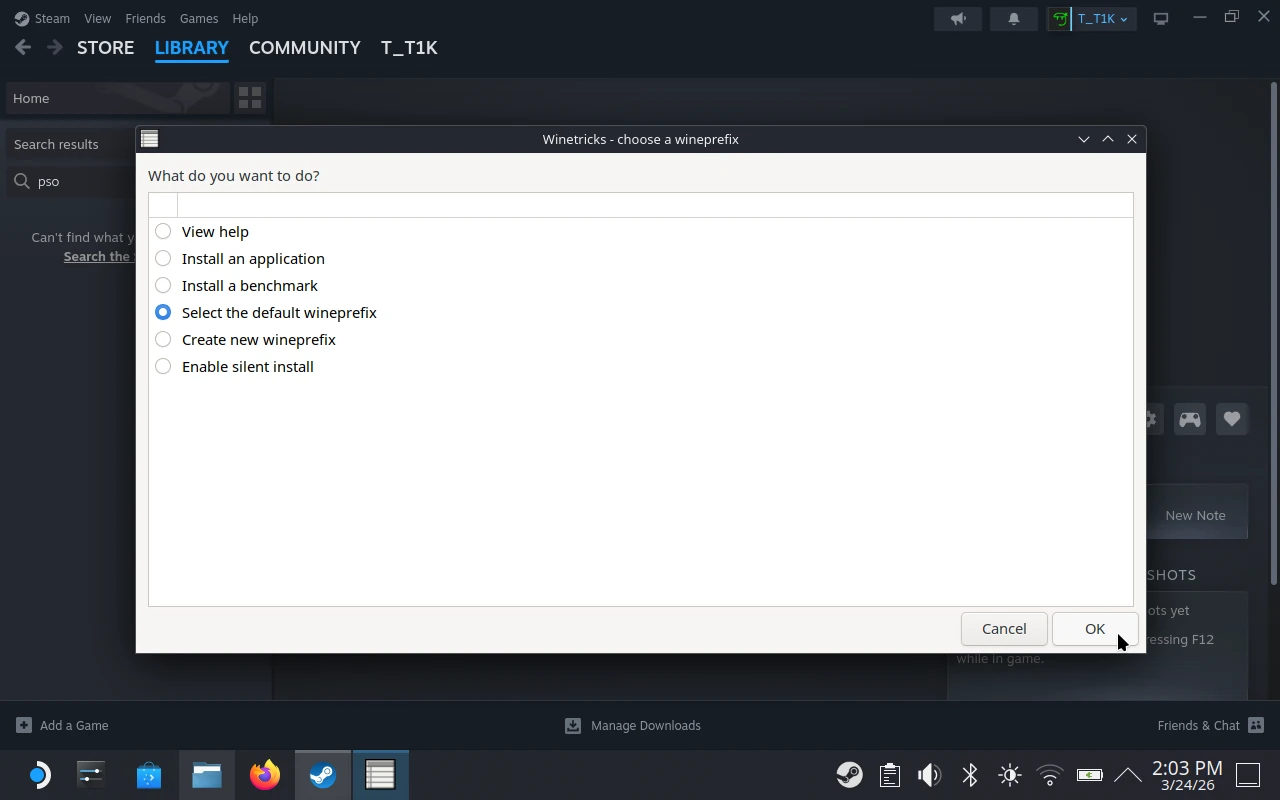
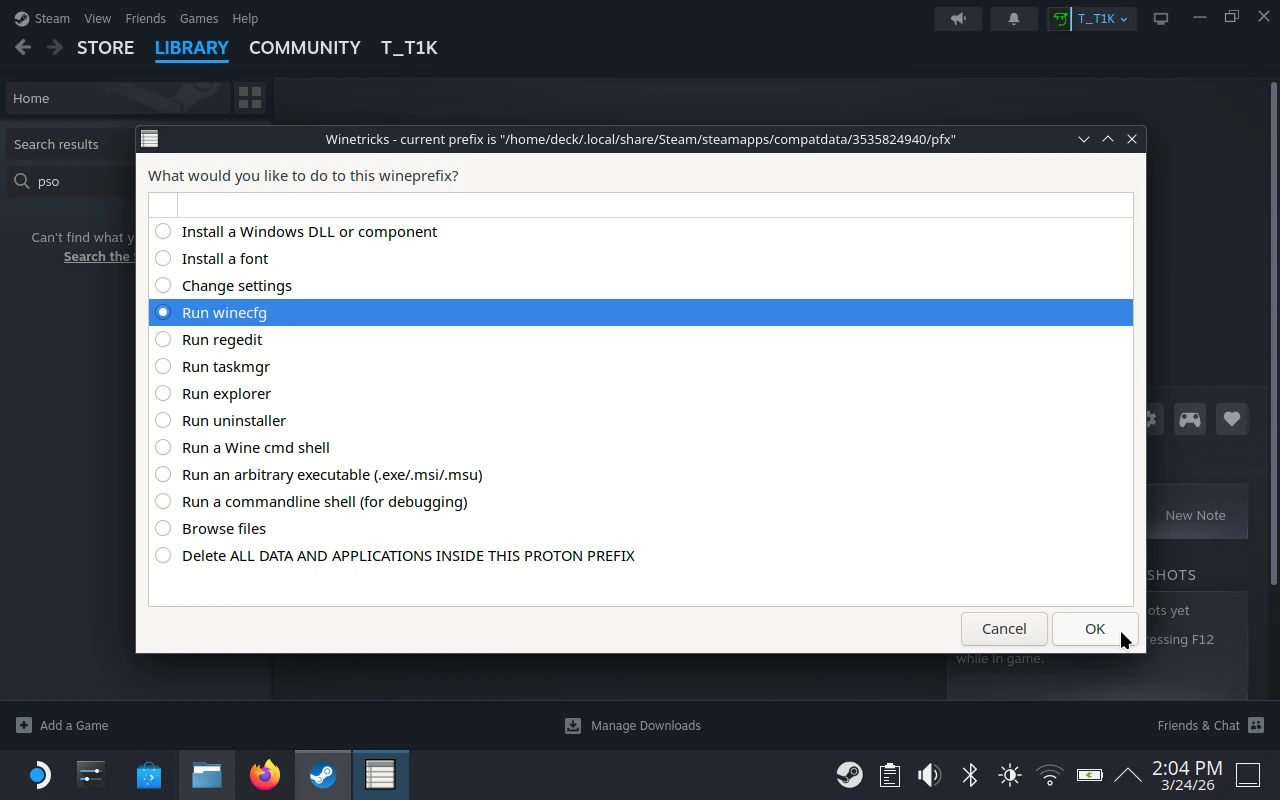
- Choose the default wineprefix.
- Select Run winecfg.
- Set Windows Version to Windows 7, then click Apply.
Step 5 - Finished
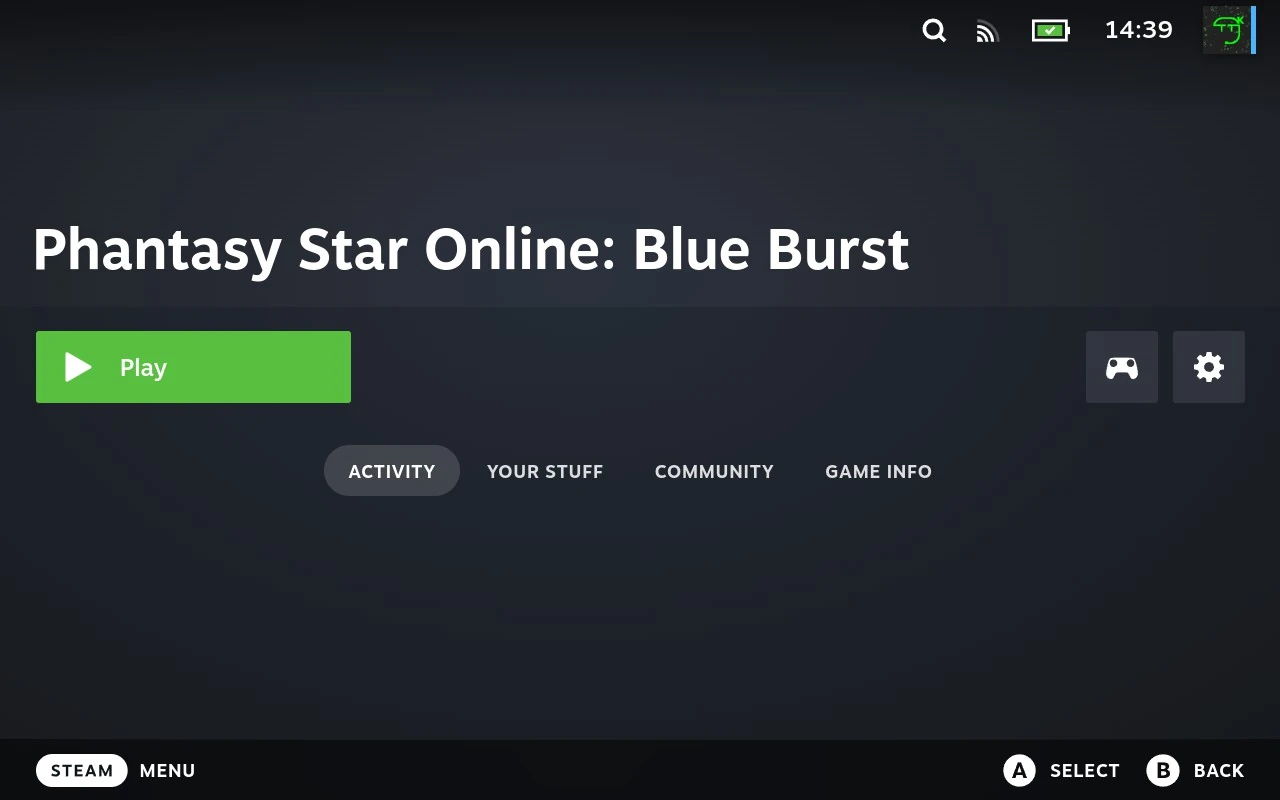
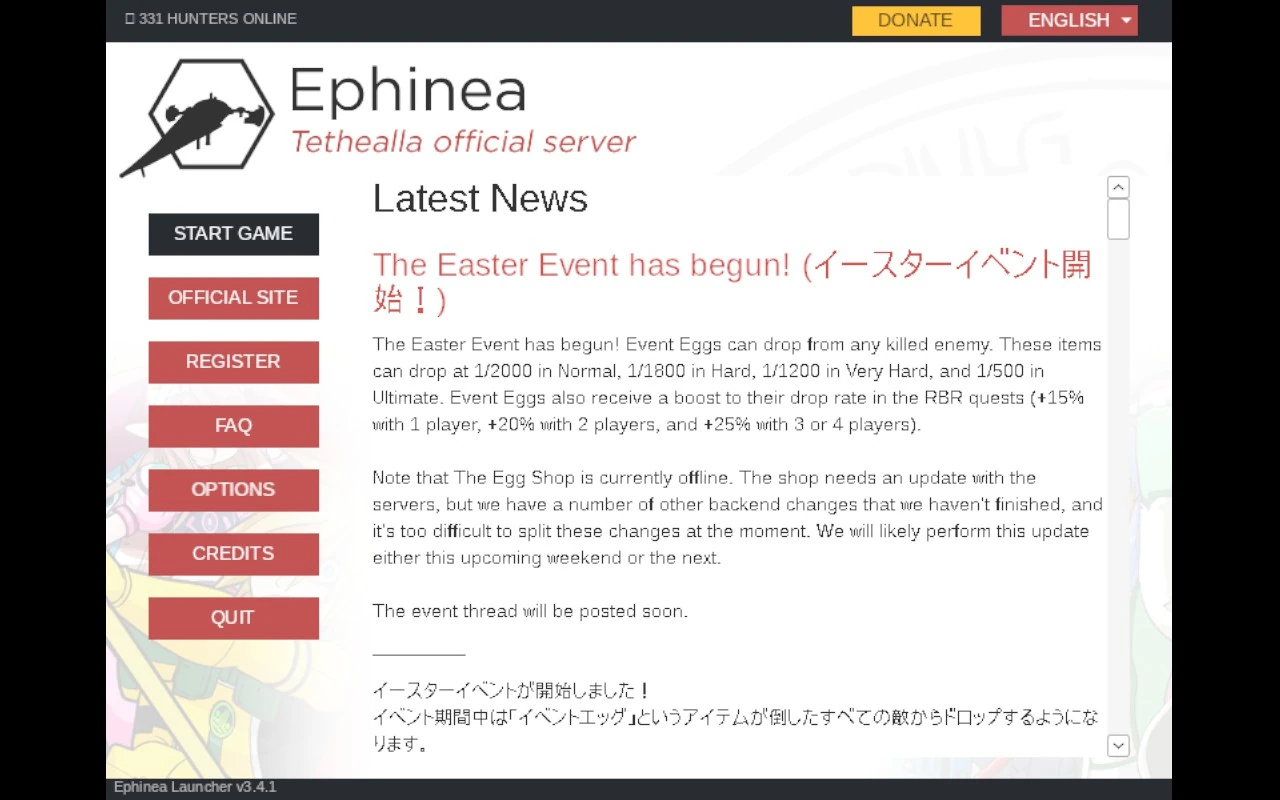
Restart your Steam Deck into Gaming Mode and launch the game from your library.

FAQs
How do I open the on-screen keyboard in Desktop Mode?
Press Steam + A.
My mouse is stuck and won’t move
Hold the Steam button while using the trackpad to control the mouse in Windows applications.
Why use Protontricks?
It avoids the need for terminal commands, making the setup simpler for beginners.
Extras
Ephinea supports gamepads, but some additional configuration is needed to make them fully functional. The Ephinea Gamepad Setup guide shows you how to set up a gamepad for Ephinea, enabling all action shortcuts and improving camera control. It works great for Steam Deck too!